Add Request
Creating requests is essential for managing your audit workflows in Agentive. This guide covers all the methods available for adding new requests to your engagements.
Overview
Requests are work items that need to be completed as part of your audit engagement. Each request has properties like title, status, priority, assignee, and due date. Requests are organized by engagement and can be categorized for better workflow management.
Create a Request
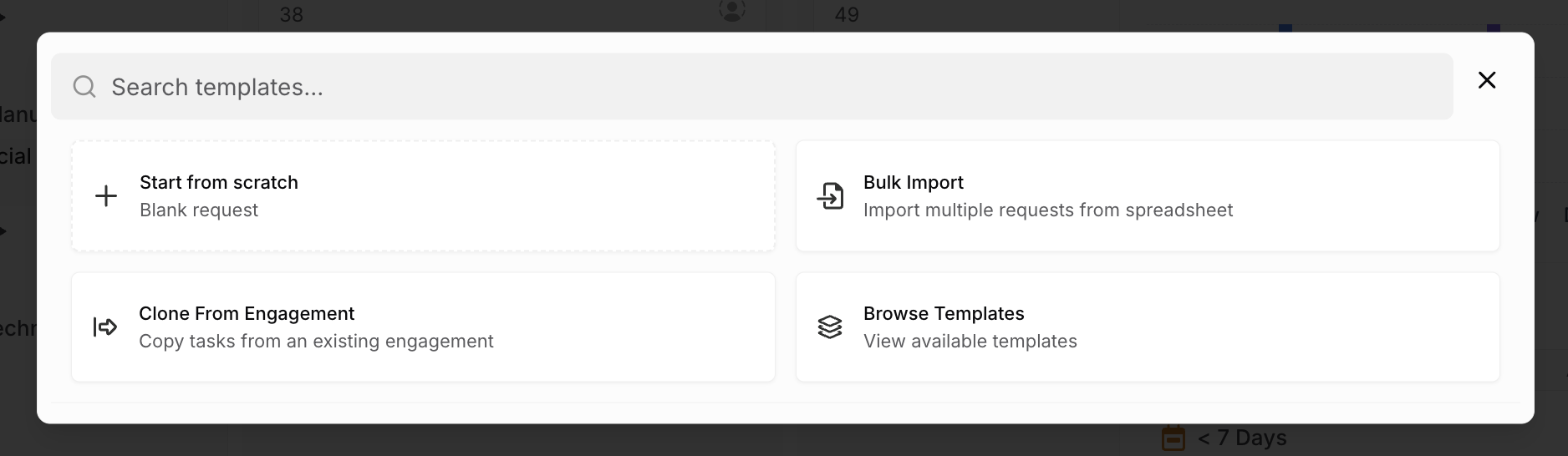
There are several ways to create new requests in Agentive:
- Use the Create button in the top right of the app to open the request creation modal
- Use keyboard shortcut
Ctrl+N(orCmd+Non Mac) to quickly create a new request - Click the + New Request button from within an engagement view
- Access request creation through the main navigation menu
Getting Started: If you’re new to creating requests, start with the “From Scratch” method to understand all the available options and properties.
Request Creation Methods
Clone from Engagement
Copy all requests from an existing engagement to quickly set up similar work.
Learn more →Browse Templates
Choose from pre-built templates for common audit procedures and workflows.
Learn more →Creating From Scratch
Creating a request from scratch gives you complete control over all properties and allows for maximum customization.
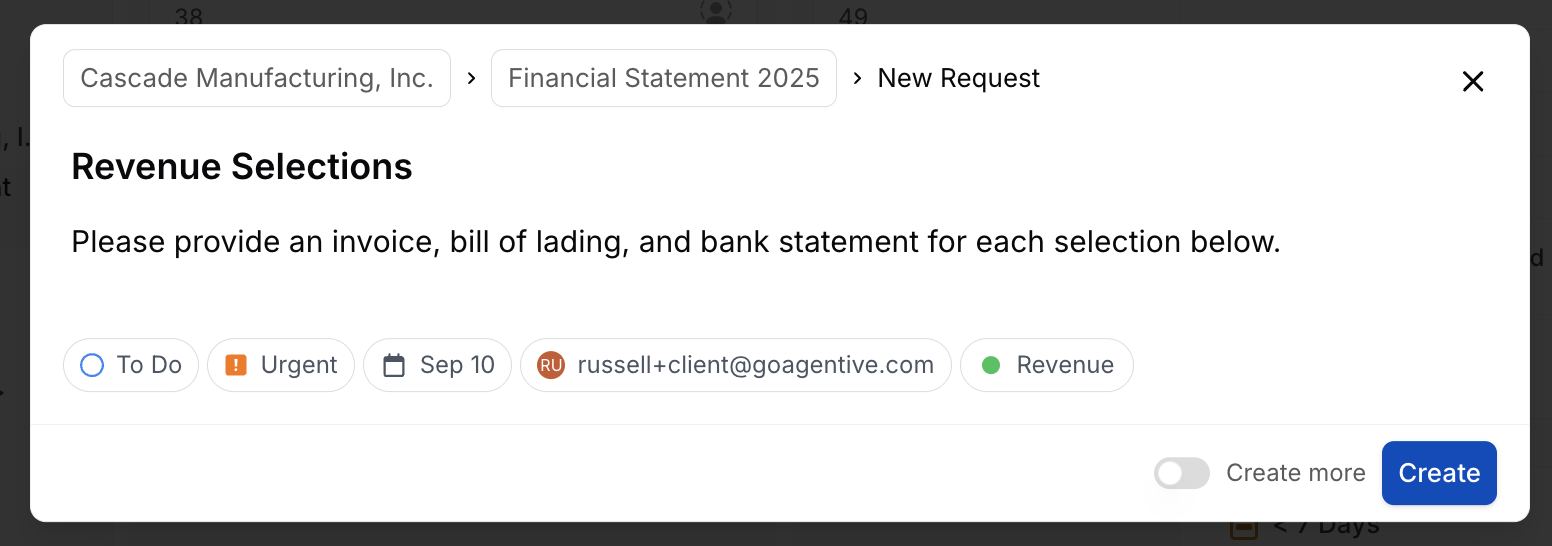
Open Request Creation Modal
Click the “Create” button and select “New Request” from the dropdown, or use the keyboard shortcut Ctrl+N (Cmd+N on Mac).
Select Engagement
Choose the engagement this request will belong to from the dropdown menu. If you’re already within an engagement, this will be pre-selected.
Enter Basic Information
Provide the essential details for your request:
- Title: A clear, descriptive name for the request
- Description: Detailed explanation of what needs to be accomplished
- Category: Select the audit area (Revenue, Cash, Fixed Assets, etc.)
Set Properties
Configure the request properties:
- Priority: Urgent, High, Medium, or Low
- Status: Typically starts as “To Do”
- Assignee: Team member responsible for completion
- Due Date: When the request should be completed
Add Additional Details
Include any supporting information:
- Instructions: Specific guidance for completing the request
- Attachments: Reference documents or files
- Tags: Labels for easy organization and filtering
Importing From Excel
The Excel import feature allows you to create multiple requests efficiently using a standardized template format.
Preparing Your Excel File
Download Template
Access the Excel template from the import dialog or your organization’s template library.
Fill Required Columns
Complete these essential columns:
- Title (required)
- Description (required)
- Category (required)
- Priority (optional, defaults to Medium)
- Assignee (optional)
- Due Date (optional)
Validate Data
Ensure all required fields are completed and data formats are correct (especially dates and assignee names).
Save and Upload
Save your Excel file and use the upload function in the import dialog.
Excel Template Structure
| Column | Required | Format | Example |
|---|---|---|---|
| Title | Yes | Text | Revenue - Sales Cut-off Testing |
| Description | Yes | Text | Test sales transactions around year-end |
| Category | Yes | Dropdown Value | Revenue & Sales |
| Priority | Optional | Urgent/High/Medium/Low | High |
| Assignee | Optional | User Email | russell+client@goagentive.com |
| Due Date | Optional | YYYY-MM-DD | 2024-09-10 |
Import Process
File Size Limit: Excel imports support files up to 50MB with a maximum of 1,000 requests per import.
Select Import Option
Choose “Import from Excel” from the request creation options.
Upload File
Click “Choose File” and select your prepared Excel template.
Map Columns
Review the column mapping to ensure data will import correctly. The system will attempt to auto-map columns based on header names.
Preview Import
Review the import preview showing how your data will appear as requests.
Confirm Import
Click “Import Requests” to create all requests from your Excel file.
Review Results
Check the import summary for any errors or warnings that need attention.
Data Validation: Invalid data (such as unrecognized assignee names or incorrect date formats) will prevent import. Review all validation errors before retrying.
Cloning From Engagement
Cloning requests from an existing engagement is the fastest way to set up similar work for recurring clients or audit procedures.
When to Use Cloning
Recurring Clients
Annual audits with similar procedures and requirements from year to year
Similar Industries
Clients in the same industry often have comparable audit procedures
Standard Procedures
Common audit areas that follow consistent testing approaches
Team Efficiency
Reduce setup time by leveraging previous successful engagements
Cloning Process
Select Clone Option
Choose “Clone from Engagement” from the request creation options.
Choose Source Engagement
Browse and select the engagement containing the requests you want to copy.
Review Source Requests
Preview all requests from the source engagement that will be cloned.
Select Requests
Choose which requests to clone (you can select all or specific ones).
Customize Properties
Adjust default properties for the cloned requests:
- Update assignees for your current team
- Modify due dates for the new timeline
- Change priorities if needed
Create Cloned Requests
Confirm the cloning operation to create all selected requests in your target engagement.
What Gets Cloned
Properties
Request properties that are copied
- Title and description
- Category and type
- Priority level (can be modified during cloning)
- Instructions and procedures
- Custom fields and metadata
Clone Optimization: After cloning, review and update request titles to reflect the new engagement specifics (client name, year, etc.) for better organization.
Browsing Templates
Pre-built templates provide a starting point for common audit procedures and can be customized for your specific needs.
Available Template Categories
Revenue & Sales
Sales testing, cut-off, returns
Cash & Equivalents
Bank confirmations, reconciliations
Accounts Receivable
A/R aging, confirmations, collectibility
Fixed Assets
Additions, depreciation, impairment
Inventory
Counts, valuation, obsolescence
Liabilities
A/P, accruals, provisions
Using Templates
Browse Template Library
Select “Browse Templates” to access the organized template collection.
Filter by Category
Use category filters to find templates relevant to your audit area.
Preview Template
Review the template details, including included requests and standard procedures.
Customize Template
Modify the template to fit your specific engagement requirements:
- Add or remove requests
- Update descriptions and instructions
- Adjust priorities and assignments
Apply Template
Create all requests from the customized template in your target engagement.
Template Features
Template Updates: Templates are regularly updated with best practices and regulatory changes. Check for new versions periodically.
Standard Templates Include:
- Comprehensive Procedures: Step-by-step instructions for common audit areas
- Regulatory Compliance: Templates aligned with current auditing standards
- Risk-Based Approach: Procedures prioritized by typical risk levels
- Time Estimates: Expected completion times for planning purposes
- Reference Materials: Links to relevant standards and guidance
Customization Options:
- Modify request titles and descriptions
- Adjust priority levels based on client risk
- Add client-specific procedures
- Include additional documentation requirements
- Set custom due dates and assignments
Request Properties and Configuration
Essential Properties
Every request includes these core properties that help organize and track work:
Identification
- • Title: Clear, descriptive name
- • ID: Unique identifier (auto-generated)
- • Category: Audit area classification
- • Type: Work type (Testing, Review, etc.)
Workflow
- • Status: Current stage in workflow
- • Priority: Urgency level with color coding
- • Progress: Completion percentage
- • Dependencies: Related requests
Assignment
- • Assignee: Person responsible
- • Reviewer: Person who will review
- • Due Date: Target completion
- • Estimated Hours: Time planning
Documentation
- • Description: Detailed requirements
- • Instructions: Step-by-step guidance
- • Attachments: Supporting files
- • Comments: Communication thread
Status Workflow
Requests follow a standardized workflow to ensure proper review and completion:
Status Descriptions:
- To Do: Request is ready to begin work
- In Progress: Actively being worked on by assignee
- In Review: Submitted for reviewer approval
- On Hold: Temporarily paused (waiting for information, etc.)
- Done: Completed and approved
Advanced Request Features
Recurring Requests
For regular audit procedures, you can set up recurring requests that automatically create new instances on a schedule.
Create Base Request
Set up a request with all the standard properties and instructions.
Configure Recurrence
Define the recurrence pattern:
- Monthly, quarterly, or annual
- Specific dates or relative timing
- End date or number of occurrences
Set Auto-Assignment
Configure automatic assignment rules based on team availability or rotation.
Activate Recurrence
Enable the recurring request to begin automatic creation.
Request Templates
Save frequently used request configurations as personal or team templates:
Template Sharing: Team templates are shared with all engagement team members, while personal templates are only available to you.
Template Creation:
- Create a request with the desired configuration
- Use the “Save as Template” option
- Provide a template name and description
- Choose sharing permissions (personal or team)
Bulk Operations
When working with multiple requests, use bulk operations for efficiency:
Available Bulk Actions:
- Status updates across multiple requests
- Assignment changes for team reorganization
- Priority adjustments for changing requirements
- Due date modifications for schedule changes
- Category updates for better organization
Best Practices for Request Creation
Naming Conventions
Effective Request Titles
✓ Good Examples
- • Revenue - Sales Cut-off Testing
- • Cash - Bank Reconciliation Review
- • A/R - Aging Analysis and Confirmations
- • Inventory - Physical Count Procedures
✗ Poor Examples
- • Test some stuff
- • Review documents
- • Follow up on thing
- • Check numbers
Organization Strategies
- Consistent Categorization: Use standard audit area categories for better filtering and reporting
- Priority Alignment: Set priorities based on risk assessment and engagement timeline
- Clear Instructions: Provide detailed, step-by-step instructions for complex procedures
- Reference Materials: Include links to relevant standards, policies, and prior year workpapers
Time Management
Planning
Effective time estimation
- Use historical data from similar engagements
- Consider complexity and team experience level
- Build in buffer time for unexpected issues
- Break large procedures into smaller, manageable requests
Troubleshooting Common Issues
Import Errors
Excel import problems and solutions
- Invalid Date Format: Use YYYY-MM-DD format for all date fields
- Unrecognized Assignee: Verify email addresses match system users exactly
- Missing Required Fields: Ensure Title, Description, and Category are completed
- File Too Large: Split large imports into smaller batches (max 1,000 requests)
- Column Mapping Issues: Check that Excel headers match expected field names
Data Validation: Always review imported or cloned requests before finalizing. Verify that all properties are correctly set and instructions are appropriate for the current engagement.
Summary
🎯 Request Creation Best Practices
Efficiency Tips
- ✓Use templates and cloning for recurring procedures
- ✓Import from Excel for large batches of similar requests
- ✓Create from scratch for unique or complex procedures
- ✓Use consistent naming and categorization standards
Quality Assurance
- ⚡Review all imported or cloned requests before use
- ⚡Provide clear, detailed instructions for team members
- ⚡Set realistic due dates with appropriate buffer time
- ⚡Align priorities with engagement risk and timeline
With these multiple creation methods, you can efficiently set up requests regardless of your specific workflow needs. Whether you’re starting fresh, leveraging existing work, or using standardized templates, Agentive provides the flexibility to create requests that match your audit approach.
Ready to create requests! Choose the method that best fits your current need: start from scratch for custom work, use templates for standard procedures, clone from similar engagements, or import from Excel for bulk creation.