How to perform expense testing using Agentive AI
Easily perform expense testing procedures with Agentive’s integrated client request and AI testing platform. This demo uses a pre-built template that is available to all Agentive users in our template library.
Video Tutorial
Start Procedure
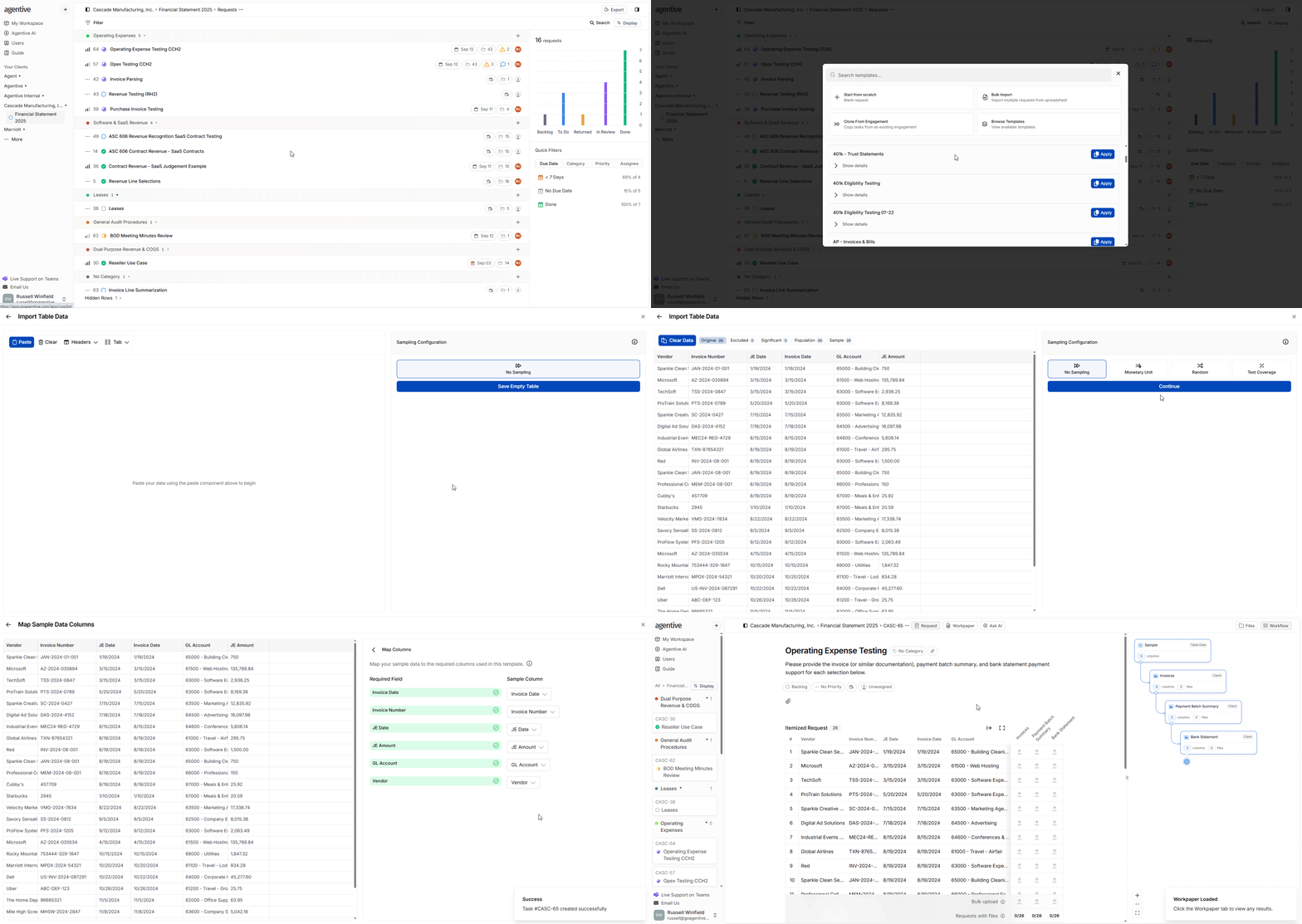
1. Add New Request from Template
Access Templates
Click the plus icon in the top left corner
Select Browse Templates
Select Templates from the menu
Choose Template
Search for and select the Agentive Operating Expense Testing — Batch Payment Process template
Add Data
Paste in your sample data from excel and select continue
2. Configure Task Settings
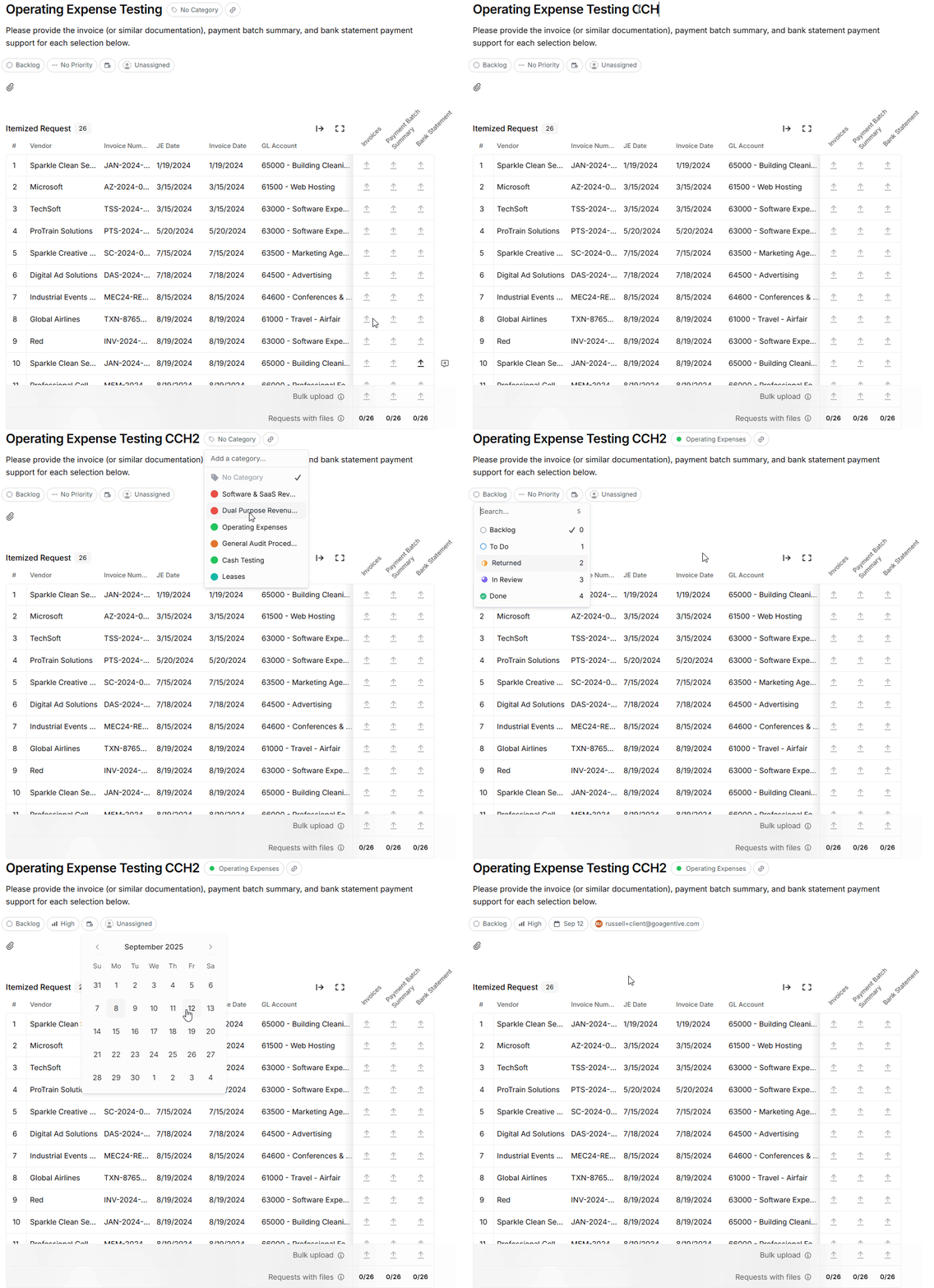
Name Your Task
Name your task (e.g., “OpEx Testing CCH2”)
Set Priority and Due Date
Set priority level and assign due date
Assign Team Member
Assign to specific client team member
Categorize Task
Categorize the task appropriately
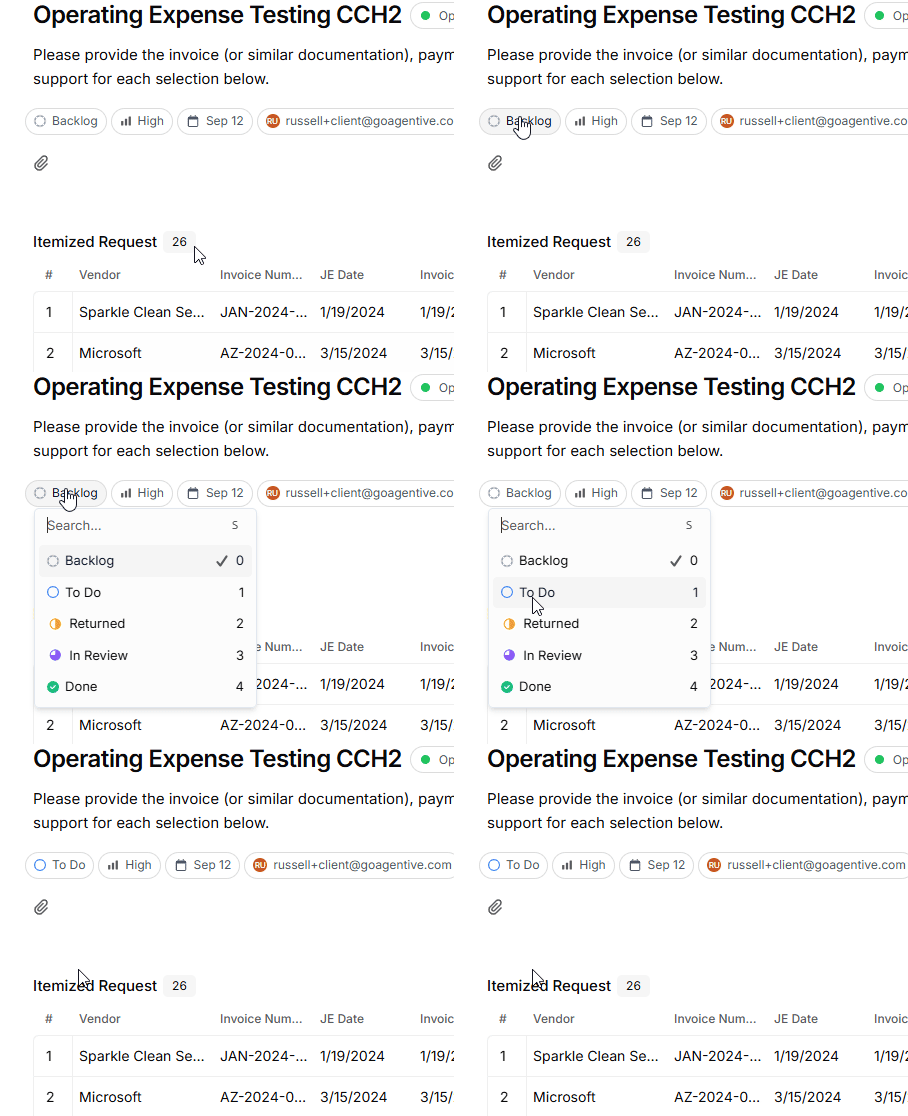
Set Initial Status
Keep status in “Backlog” until you want it visible to the client
Status Management: Changing status to “To Do” will immediately make the request visible on the client’s request list.
3. Review and Configure Testing Attributes
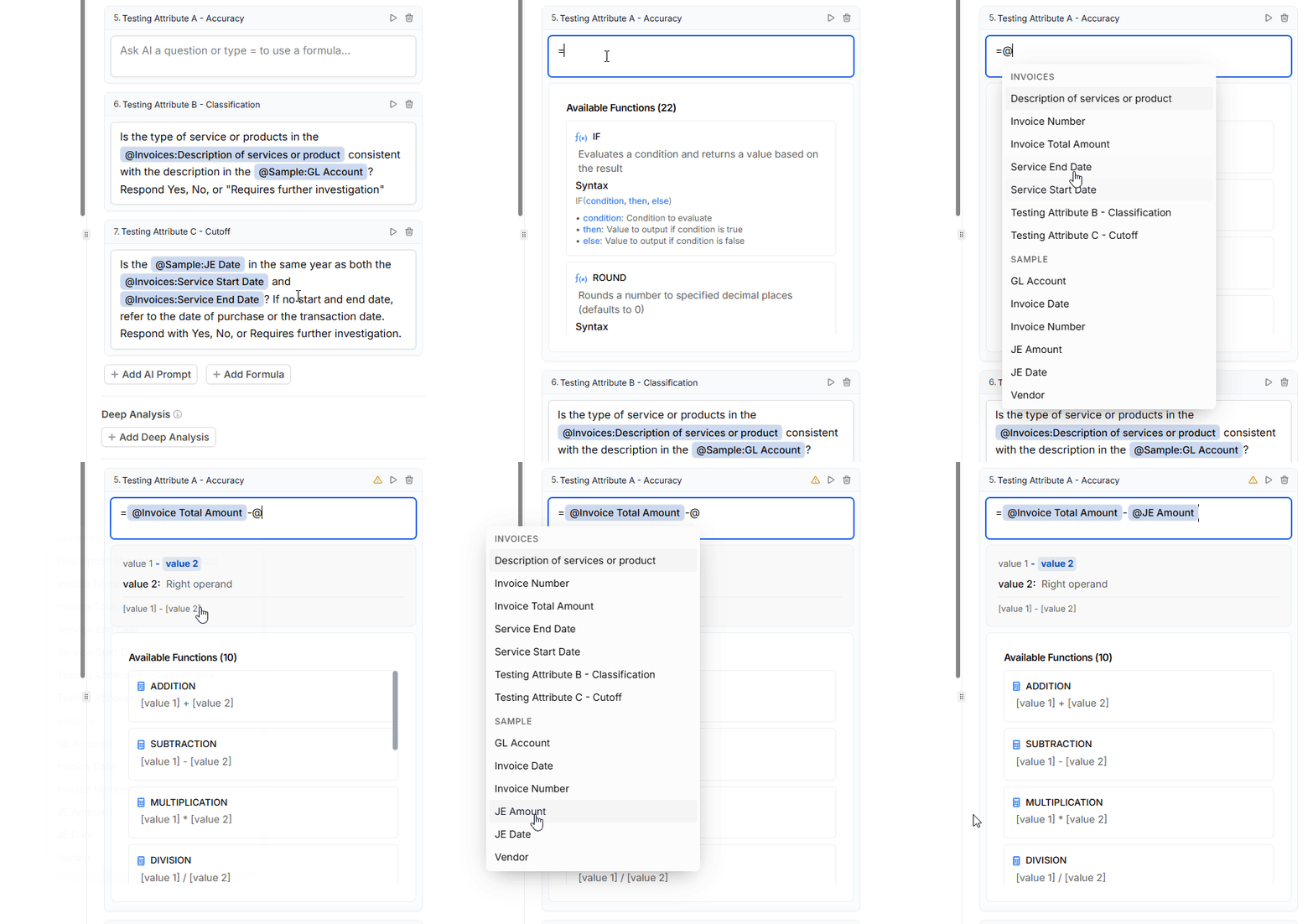
The template includes pre-configured testing attributes that will perform the following:
Data Extraction
- Invoice Total Amount - Extracts total monetary value
- Description of Services - Captures service details
- Service Start and End Dates - Records period covered
- Product Delivery Date - Notes delivery timing
Validation Tests
- Accuracy Testing: Excel-type comparison between invoice amount and JE amount
- Classification Testing: AI evaluation comparing invoice service type against GL account description
- Cut-off Testing: Validates that service dates align with journal entry dates (same calendar year)
4. Set Up Client Validation Criteria
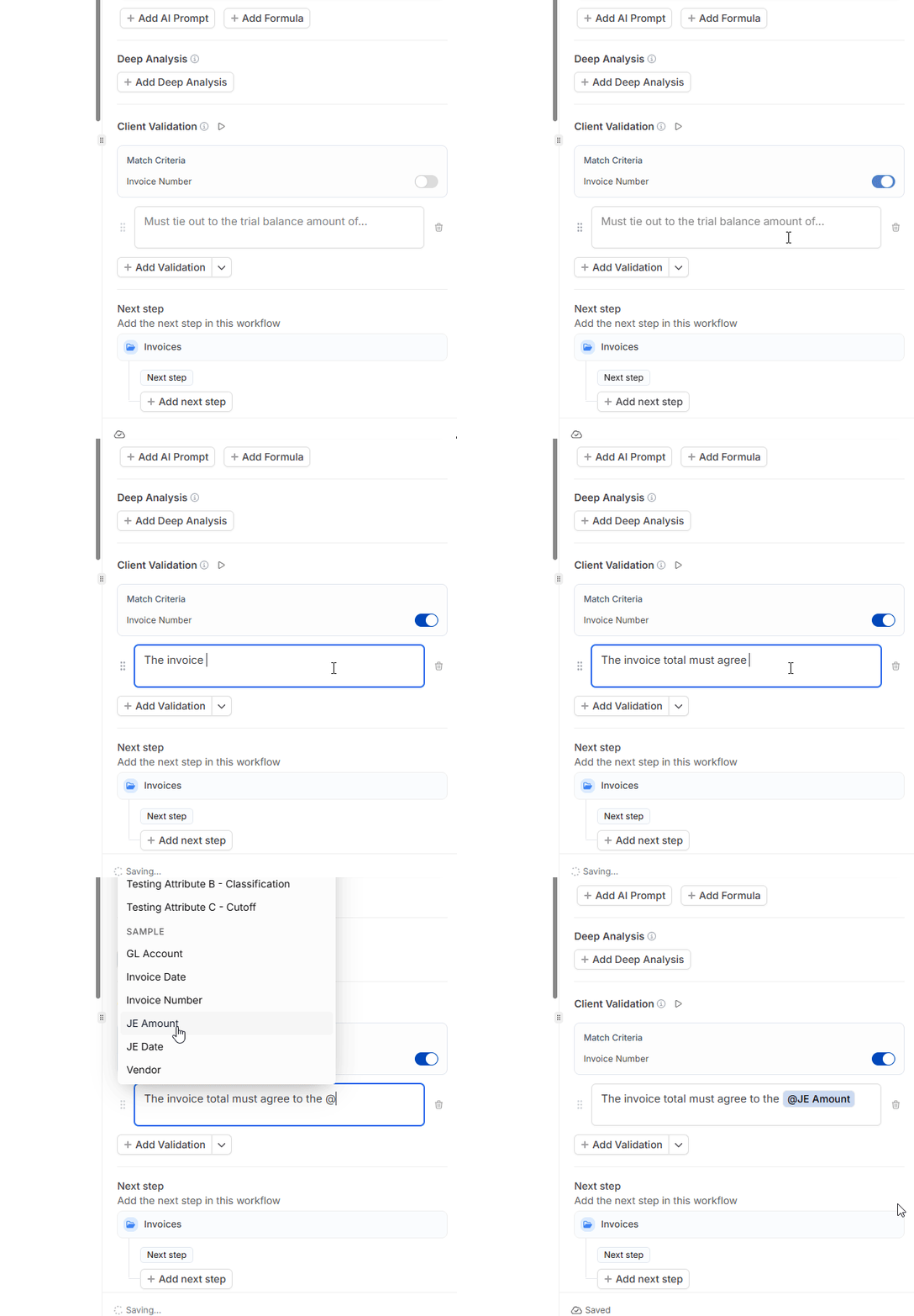
Configure automatic validation checks for client-uploaded documents:
Invoice Number Matching
Ensures uploaded documents match requested invoice numbers
Amount Validation
Compares invoice amounts against underlying JE amounts
Set Tolerance Threshold
Define acceptable variance levels to avoid over-flagging minor differences
5. Configure Additional Document Groups
For vouching invoice to cash procedures:
- Payment Amount Verification: Check payment amount on invoice against payment batch summary
- Payment Batch to Bank Statement: Tie payment batch summary details to bank statement
- Payee Description Validation: Ensure payee information is accurate
- Payment Date Verification: Confirm payment timing consistency
Client Workflow
6. Activate Task for Client
Change Status
Change task status from “Backlog” to “To Do”
Client Visibility
Task will appear on client’s dashboard immediately
Evidence Requirements
Client can see required evidence uploads
7. Client Request Fulfillment Guide
View Request List
Client views new to-do item on their request list
Upload Documents
Documents are drag-and-dropped for auto-matching and validation
Auto-Matching
System matches documents to sample requests and validates against the acceptance criteria
Submit for Review
Client clicks “Submit for Review” when upload is complete

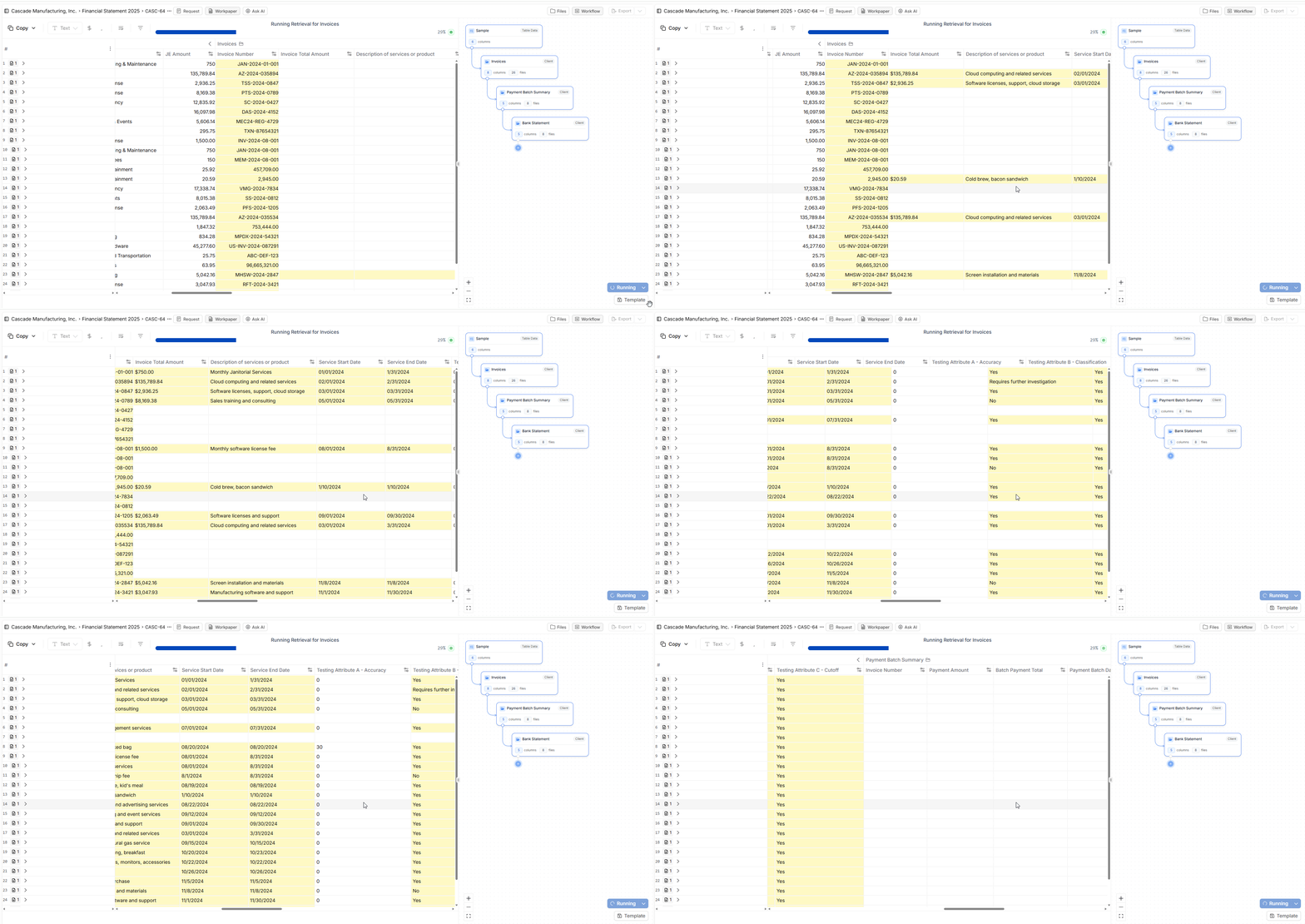
8. Automated AI Processing
Once client submits documents for review Agentive will:
- Validate against your acceptance criteria
- Alert clients of any validation issues
- Prepare work papers for your review automatically
Issue Resolution
9. Handle Client Acceptance Criteria Issues
When validation issues arise (indicated by yellow triangle icons):
Common Issues:
- Invoice Number Mismatch: Document uploaded doesn’t match any sample invoice numbers
- Amount Discrepancies: Total amounts don’t agree between invoice and recorded amounts
Resolution Process:
Investigate Issues
Client investigates flagged issues
Add Comments
Add explanatory comments for variances (e.g., “Employee paid baggage fee personally”)
Upload Correct Documents
Upload correct documents if wrong files were submitted
Re-process
System re-processes after corrections
Auditor Review Process
10. Review AI-Generated Work Papers
Monitor Processing
Monitor real-time processing: AI extractions and testing visible as they complete
Review Accuracy Tests
Review accuracy tests: Check computed variances and AI explanations
Evaluate Classification Results
Evaluate classification results:
- Review “No” results where AI found inconsistencies
- Validate “Yes” results for reasonableness
- Investigate “Requires further investigation” items
11. Professional Judgment
For Classification Testing:
- Agree/Disagree with AI assessments based on professional judgement and knowledge of client documentation and business processes
- Example: AI might flag “screen printing materials” as inconsistent with “company swag” GL account, but auditor may determine this is actually appropriate
For Cut-off Testing:
- Verify date logic: Ensure service periods align with recording periods
- Review monthly fees: Confirm recurring charges are properly allocated
12. Vouching Procedures Validation
Invoice to Payment Batch
Confirm invoice amounts tie to payment summaries
Payment Batch to Bank
Verify payment batch totals match bank statement entries
Payee and Date Verification
Ensure payee descriptions and payment dates are consistent across documents
Final Documentation
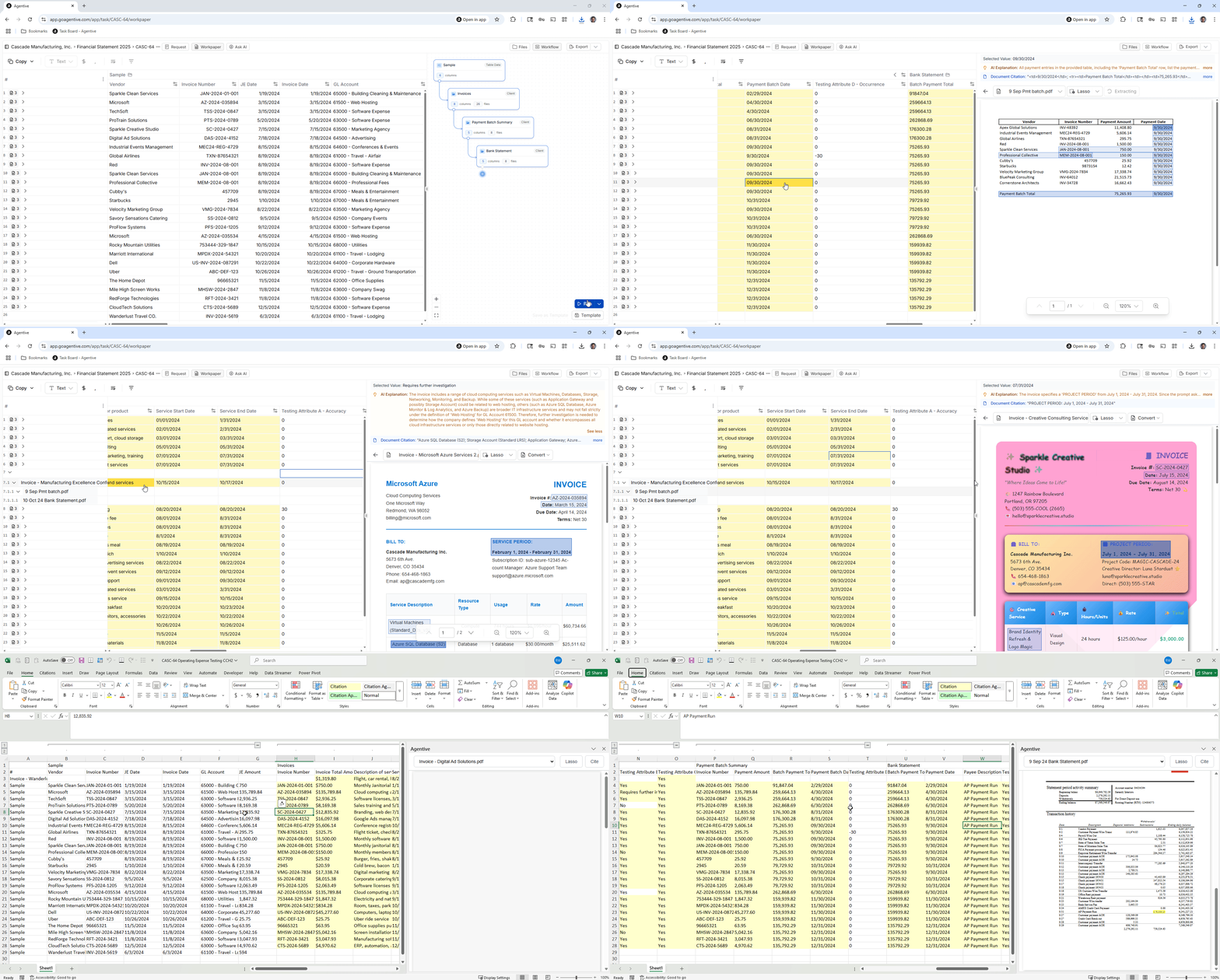
13. Export Work Papers
Export to Excel
Click “Export to Excel with Embedded Evidence”
Review Excel File
Excel file includes:
- All testing results and tick marks
- Embedded supporting documents
- AI explanations and variance analysis
- Direct links to source evidence
14. Manager Review Features
The exported Excel file provides:
- Right-panel evidence display: Easy access to supporting documents
- Embedded evidence links: No need to search through folders
- Audit trail: Complete documentation of AI testing and auditor reviews
- Customizable tick marks: Add professional conclusions and adjustments
Ready to Get Started?
Click here to schedule a demo or training for your team.